Search This Blog

Showing posts with label Downloads. Show all posts

Sunday, September 1, 2013

WordPress Plugin

Display Top 10 Popular Posts Widget

Display Top 10 Popular Posts is a WordPress Widget that displays the top 10 popular posts in duration of 7 days, 1 month or 1 year based on data from Google Analytics.
You can download the source code in GitHub - Display-Top-10-Posts-Widgets
Instructions:
The following are the instructions to set up WordPress plugin.
       1)      Copy the “DisplayTop10PostsWidgets” to word press plug-in directory (“Install_Folder/wordpress/wp-content/plugins”)

       2)      Login to Wordpress Admin (localhost/wordpress/wp-admin)
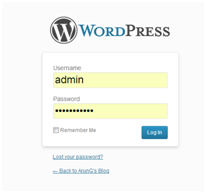

       3)      The Admin site for your Word Press blog will open. Click on the Plugins->Installed Plugins


       4)      The Plug-in ‘Display Top 10 Posts Widget’ will be displayed. Click on the Activate link.


        5)      Plug-in Activated will be displayed.
        6)      Now go to the Widgets by clicking on Appearance-> Widgets.
                

         7)      Now Drag and drop the Widget from the ‘Available Widgets’ to the ‘Main Side Bar’
          8)      Now fill the required settings (Google Analytics Email, Google Analytics Password, Google Analytics           Profile Id, Max Results and Time Duration) and click save.

         9)      You can drag and drop the widget how many times you want and configure for different Duration.

        10)   Next Open a word press page and the Widget will display the top 10 posts based on duration configured.
Please find the screen shot below:

Common Help:

1)      If the Widget displays “No Posts Available” it means no analytics data was returned for the particular time duration.
2)      If the Widget displays “Could not get Report Data. Error Occurred. Please verify the settings are right” it means there is something wrong with the settings
i)                    Verify  whether Gmail account is right
ii)                   Verify whether password is right

iii)                 Verify whether Profile Id is right. (profile id will be in the form of 8 digits)

You can download the source code in GitHub - Display-Top-10-Posts-Widgets

Tuesday, July 30, 2013

Snakes and Ladders Game in Java


Snakes and Ladders game is an interesting and a fun game to play with friends. I have built a basic snakes and ladders game using the SWT (Standard Widget Toolkit) when I learned it long back, using just the SWT labels and MS Paint to create a board game.
You can download the source code by clicking the link Download Source Code


Instructions:
The following are the instructions to set up the source code in Eclipse IDE.
i)                    Import the project into Eclipse’s Workspace by clicking on File -> Import
ii)                   Select the root directory and check on the “Copy Projects into workspace” and click Finish.
iii)                 Once the project is loaded , it shows that it loaded with Errors
iv)                 Right Click on the project and click on Properties and select Build Path. The libraries are missing that is the cause for the error.  We  need to provide the correct path for the libraries

v)                  All the jar files will be present in the Eclipse folder, we just need to find it and give the name For e.g. we will take the first one “org.eclipse.osgi_3.8.2.v20130124-134944.jar
vi)                 Click on the Add External jar button

vii)               Navigate to the file “org.eclipse.osgi_3.8.2.v20130124-134944.jar” and add it, also remove the entry that previously showed error.
a.       Add the correct external jar
b.      Remove the jar that already showed error
viii)              Repeat the steps 4 to 7 for the remaining 11 build path errors.
ix)                 Once the build paths are set correct, we can run the Java Application. Right Click on the Dice.java  and select run as “Java Application”

x)                  Now we can select players to Play, it supports maximum of 3 players. Click on include to include the players and give a name
xi)                 Click on Roll, to roll your dice. Each ones turn will be displayed in the Roll box. Have Fun :)

You can download the source code by clicking the link DownloadSource Code

Saturday, July 27, 2013

Network Speedometer

Network Speedometer
Network Speedometer is a small application which can run in your notification area and shows/ display’s your Network’s current upload speed and download speed.


You can also view the Up load speed and Download speed on placing your mouse over the application.

Requirements:
.NET Framework 4 Client profile

Instructions:
1)      Download the RAR file and extract it.
2)      Click on the Setup.exe  [This will download and install the .NET Framework 4 Client profile]
 Please be patient as this may take some time
3)      Once completed if asked for restart, restart your computer
4)      Click on NetWorkSpeedOMeter.application file
5)      If prompted Click on Install, enjoy

You can download the application by clicking on the link below:

Labels